How to make a photo slideshow with music
A practical guide to making a photo slideshow with music for an event or family gathering. Learn how to curate photos, match the rhythm, and export a clean video.
Rebecca Lee · 1 October 2026 · 5 min read

To make a photo slideshow with music, you gather your chosen pictures into a single folder, bring them into an editing program on your computer, and place an audio track underneath. You then trim the display time of each picture so the cuts match the natural rhythm of the melody, check that faces remain visible, and export the project as an MP4 video file.
While the basic process is straightforward, the difference between a dull sequence of pictures and an engaging presentation comes down to selection and rhythm. A slideshow shown at an event should hold attention, make people smile, and leave them wanting more rather than checking the clock.
Choosing and organizing your pictures
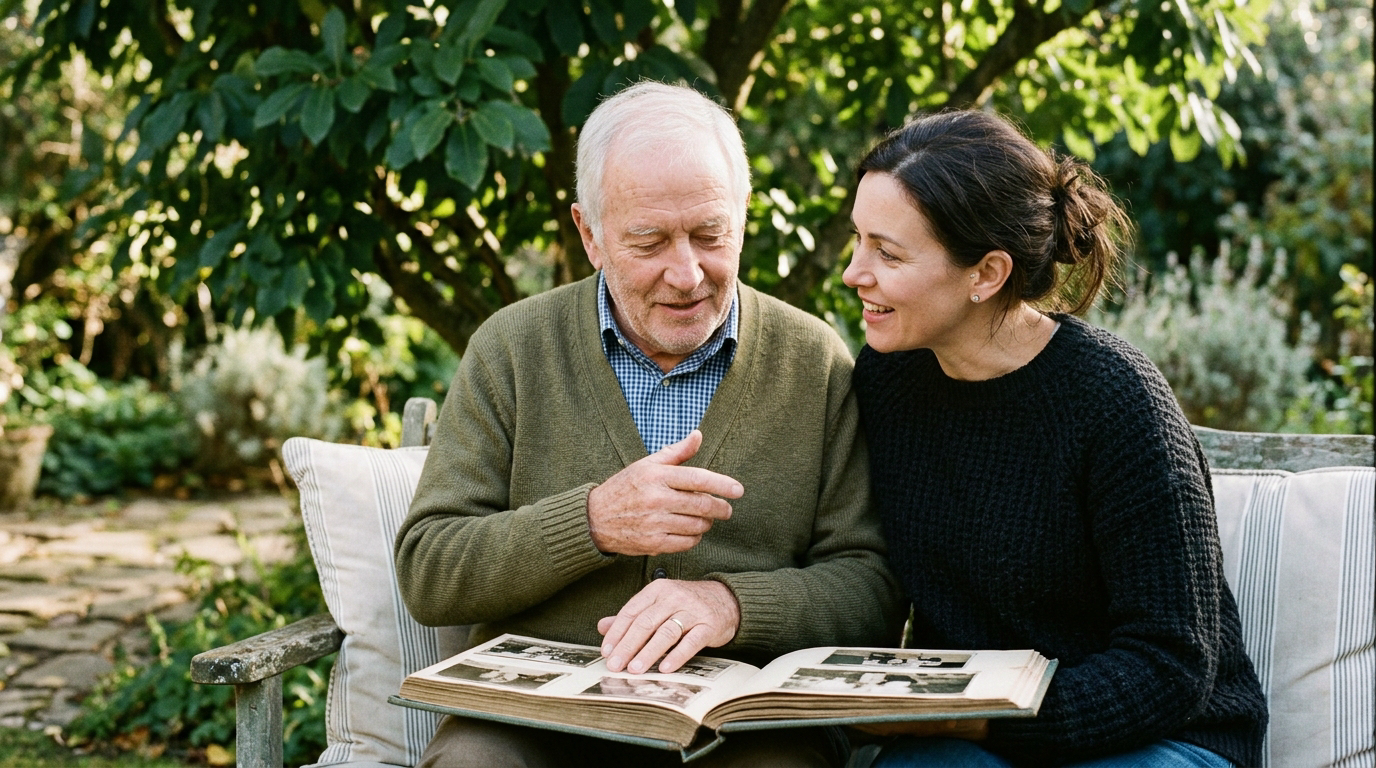
Before opening any editing software, get your images organized in one place. If you are working with physical prints, scan them at high resolution first. Once your files are digital, sort them into a dedicated folder on your computer.
Be selective about what goes into the folder. When you have six nearly identical shots of someone blowing out birthday candles, choose the clearest and most expressive one. An audience stays interested when every picture shows a distinct scene or a genuine expression. For a five-minute song, a sequence of forty to sixty pictures is usually comfortable, giving each moment several seconds on screen. Read our practical guide on choosing photos and videos to help narrow down a large archive.
Once you have your final group of photos, rename them in numerical order, such as 01, 02, and 03. Most video software imports files alphabetically. Ordering them beforehand prevents you from having to drag dozens of images back and forth across your editing workspace.
Picking the right software
You do not need complicated, professional editing suites to build a moving slideshow. The built-in software on your desktop or laptop is usually more than enough.
- On a Mac, the built-in video editor provides a clean timeline where you can drop pictures into the top track and sound files into the track below.
- On Windows, the default video application offers similar basic tools to assemble images, add transitions, and adjust clip durations.
Working on a computer screen is far easier than editing on a phone. The larger display allows you to inspect old details, zoom in on faces, and see the audio wave clearly as you trim.
Finding suitable music
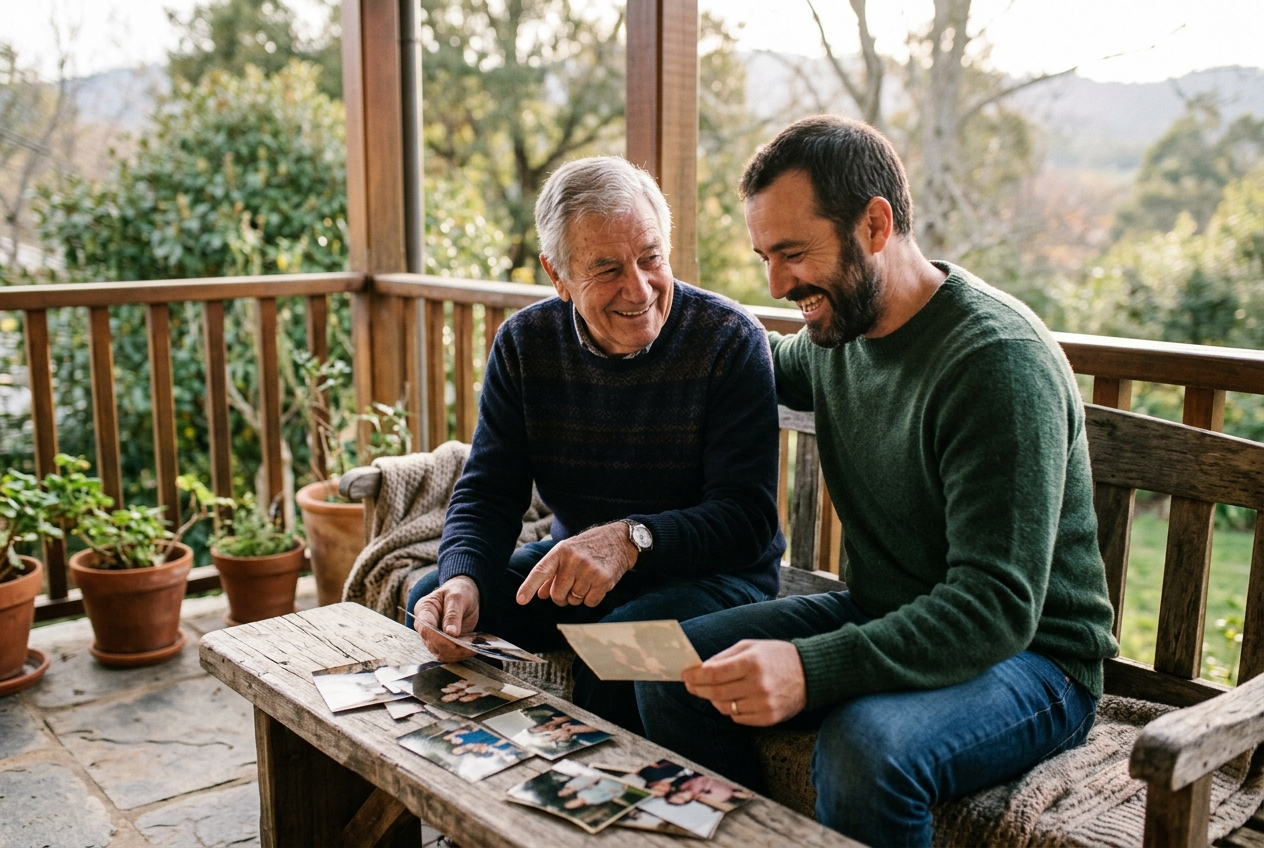
The soundtrack provides the emotional tone for your images. A quiet acoustic piece will make an anniversary collection feel tender, while a lively melody gives a family reunion video a cheerful energy. Our guide on picking the music covers how to match tunes to specific celebrations.
Here are three practical points to consider when selecting a track:
- Instrumental versions often work best. Lyrics with prominent singing can compete with the pictures, drawing the viewer's attention away from the faces on screen.
- Notice the tempo. A song with a fast tempo forces you to show pictures quickly, which can make historical black and white portraits hard to appreciate. Moderate tempos give older relatives enough time to recognize familiar faces.
- Think about where the video will be shared. If you plan to post the finished slideshow publicly on social media or video platforms, choose royalty-free music or tracks you own the rights to, which prevents the audio from being muted by automatic copyright systems. You can read more about balancing music and sound in our article on how to add music to a video.
Setting the rhythm and pacing
When you import a set of pictures, most software assigns each image a default duration, usually three or four seconds. If you leave every image at the exact same length, the presentation will feel rigid.
Take time to adjust the length of individual images by eye and ear:
- Watch the audio waveform along the bottom of your timeline. You will see spikes where drum hits, guitar strums, or piano chords land. Drag the start or end of each picture so the cut aligns with one of those musical accents.
- Give detailed photos more time. A wide family portrait with fifteen relatives needs five or six seconds so guests can spot everyone. A simple close-up portrait or an amusing snapshot of a toddler might only need two or three seconds.
- Keep transitions simple. A straight cut from one image to the next is clean and timeless. If you use dissolves, keep them short so the photos do not look muddy as they blend together.
Adding gentle motion
A completely static photograph on a wide television screen can occasionally feel flat. Many editing programs include pan and zoom effects that slowly push into or pull out of a still frame.
Use motion sparingly. Continuous movement on every single image can make an audience feel dizzy. Keep zooms subtle: a slow push toward the center of the frame over four seconds is plenty. Check every animated picture before finishing to ensure that the framing does not accidentally crop off someone's hair or drift into an empty corner of the background.
If you want a polished film for a milestone gathering without spending days cutting clips, Linof turns your family photos into a short film with music, repairs old prints, and animates chosen portraits into short moving shots, with the first animation free to try.
Exporting and testing the final film
When your cuts match the music and your titles are in place, export the project as a standard MP4 file. This format works reliably across smart televisions, tablets, laptops, and projectors.
Before the big day, test your file in the room where people will watch it. Connect your laptop or flash drive to the actual television or projector and check both image clarity and sound levels. A smooth presentation lets everyone relax and enjoy the memories together.
Questions
How many photos should be in a photo slideshow with music?
For a standard three to four-minute song, aim for forty to sixty photos. This pacing allows each image to stay on screen for three to five seconds, which gives viewers enough time to absorb each memory without the film dragging.
What is the best software to make a photo slideshow?
The default built-in video editors on Mac and Windows computers are usually the easiest and most reliable choices for beginners. They allow you to drag images onto a timeline, add an audio track underneath, and export standard video files without purchasing extra software.
Should I use vocal or instrumental music for a slideshow?
Instrumental music is generally better because prominent lyrics can distract viewers from looking closely at the photographs. Soft acoustic guitar, piano, or gentle orchestral pieces support the mood of the images without competing for attention.
Written by
Rebecca Lee