The 3-2-1 backup rule for family photos and videos
The 3-2-1 backup rule protects your irreplaceable family memories with three copies on two different storage media and one kept offsite.
Raya Deutsch · 1 October 2026 · 5 min read
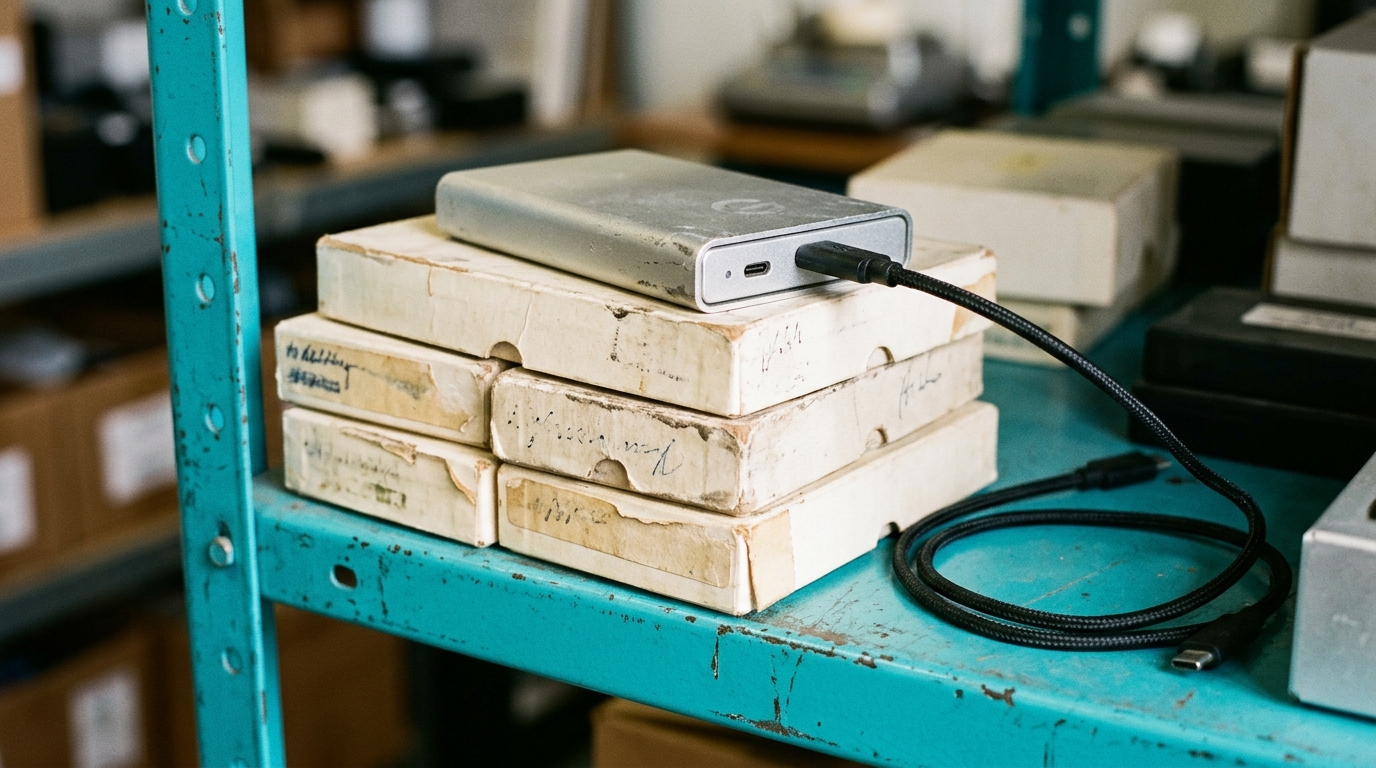
The 3-2-1 backup rule means keeping three copies of your family photos and videos, stored on two different types of media, with one copy kept offsite. It guarantees that a single accident, like a dropped phone, a spilled coffee, or a mechanical hard drive failure, will not wipe out decades of family memories. Following this routine turns a fragile collection of files into an archive that lasts for generations.
Why a single hard drive is not enough
Many people finish scanning albums or convert old home tapes and feel an immediate sense of relief. They transfer everything to a single external drive, slide it into a drawer, and consider the project finished.
A single storage drive is a mechanical object with spinning metal platters, or a circuit board vulnerable to power surges. Parts wear out, circuits short, and drives get knocked off desks. If all your family videos live on one drive, your files are just as fragile as they were sitting in a cardboard box in the garage. Learning how long do external hard drives last makes it clear that hardware eventually fails. Spreading your files across multiple devices removes the risk of losing everything in one afternoon.
Three total copies of your memories
The first step of the rule requires three distinct copies of your files. This means your working master files plus two separate backups.
If your pictures sit on your laptop, that is copy number one. Dragging those pictures onto an external drive and then deleting them from your laptop does not make a backup. That is simply moving your single point of failure to another plastic box. A genuine backup requires that the exact same files exist in three different spots at the same time.
A common home setup looks like this:
- Your working library on your home computer or main laptop
- A local backup copy on an external desktop drive
- A remote backup copy saved in the cloud or on a second drive kept elsewhere
If your laptop stops working tomorrow, the local drive is ready on your desk. If your home drive fails, your remote copy remains untouched.
Two different types of storage media
The second requirement is to place those three copies across at least two distinct storage formats. Storing all three copies on identical flash drives bought together exposes you to the exact same hardware flaws or controller bugs at the same time.
Instead, mix your media types. Combine local physical hardware with an online cloud service. Physical drives give you quick access and work without an internet connection. Cloud providers store your data across commercial data centers with their own automatic hardware replacements. The two systems balance each other out:
- A solid-state drive or mechanical external drive connected locally
- An encrypted cloud storage service or offsite server
Using both protects you against local hardware breakdown and slow internet speeds at the same time.
One copy kept offsite
The third requirement is having at least one copy stored outside your house. This step is critical because local backups cannot protect against property damage.
If your laptop and your external drive sit side by side on your desk, a burst pipe, a house fire, or a break-in can wipe out both copies simultaneously. An offsite backup ensures your family history survives events that damage your home.
For most people, automated cloud storage handles this offsite copy. Once you install the software, it uploads new files in the background. If you prefer to avoid recurring monthly fees, you can maintain an offsite copy manually using the swap method:
- Buy two identical external drives and label them clearly.
- Copy your entire family photo and video collection to both drives.
- Keep one drive in your home and take the second drive to a family member who lives nearby.
- Every few months, bring your home drive to their house, swap it for the older drive, and update that older drive with your latest files.
This simple rotation gives you an offsite physical archive without subscriptions.
Setting up your backup workflow
You do not need to organize every file perfectly before you start protecting them. The most important step is simply getting your existing photos into one main folder so you can begin copying.
- Gather loose files from old phones, memory cards, and forgotten folders into a central library folder on your computer.
- Review advice on how to back up family photos and videos to establish a sensible folder structure by year and month.
- Plug in your external drive and run a complete copy of the library folder.
- Connect your cloud service or prepare your secondary drive for offsite storage.
- Verify that your folders match across all locations before deleting any files from camera cards.
Long term formats for your archive
A safe backup is useless if modern devices cannot read the file format decades from now. Proprietary formats created by niche software or old camcorder brands can become unreadable as operating systems update.
Stick to universal formats that modern systems read by default:
- Photos: Save everyday pictures as standard JPEG files. For archival scans of prints and slides, uncompressed TIFF files preserve maximum detail.
- Videos: Standard MP4 files with universal compression work on nearly every modern screen, television, and computer system.
If you find older family movies stored in outdated formats, convert them to standard MP4 files before running your backup routine. This step ensures your children will be able to double-click and watch those clips without installing obsolete video players.
Using your archive for family events
Backing up your family library is not just about disaster prevention. When your master files are protected in three separate places, you can pull copies for personal projects without worrying about damaging the originals.
Linof turns a family's photos and videos into a short film with music and titles, perfect for an anniversary or big birthday, and the first animation is free so you can see a picture brought into motion before deciding. You can learn about choosing photos and videos to pick the moments that will delight the room during a celebration.
Checking your backups twice a year
A backup system is only dependable if you test it. Software can stall, credit cards linked to cloud accounts expire, and drives can quietly fail without an alert.
Pick two dates each year, such as the start of summer and the middle of winter, to inspect your copies:
- Plug your local external hard drive into your computer and open a few random video clips from different years to verify they play smoothly.
- Sign in to your cloud storage dashboard using a standard web browser, locate an older photo folder, and download an image directly to your desktop.
- Confirm that new pictures taken over the past six months are appearing in both your local backup and your offsite copy.
Testing takes five minutes and ensures your system works long before an unexpected computer crash puts your photos at risk.
Questions
Does keeping photos on my phone and my laptop count as two copies?
Only if both devices hold the full original file rather than low-resolution previews. If your phone automatically deletes local files to clear storage, it is not serving as a true independent copy.
Is cloud storage completely safe for irreplaceable family memories?
Cloud services are reliable for offsite protection, but accounts can still be locked, compromised, or closed due to missed billing. Cloud storage works best as one leg of the 3-2-1 rule alongside a physical drive kept at home.
How often should I update my offsite physical hard drive?
Updating an offsite drive every three to six months is practical for most households. Swapping drives with a relative during holiday visits keeps the remote archive fresh without turning the task into a weekly chore.
Written by
Raya Deutsch