The Linof team · September 29, 2026 · 4 min read
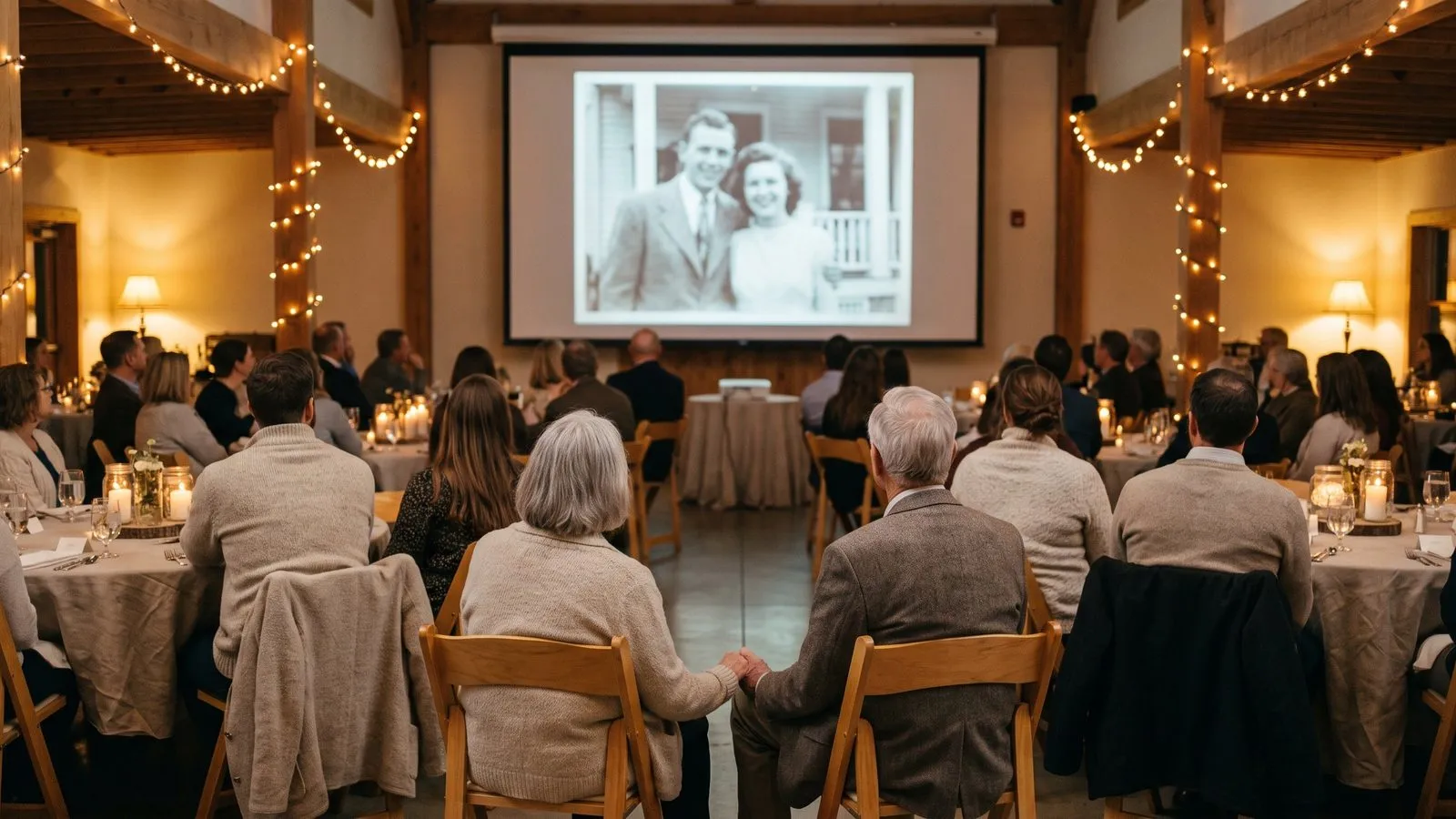
A great presentation needs good light, clear sound and the right moment in the schedule. Test your screen and speakers early so you can relax and watch the video with your family.
Pick the best screen
The screen you choose changes how people experience the memories. A large television in a living room works well for a family gathering. If you are hiring a hall, a projector makes the video feel like a real cinema event. Think about how many people will be watching. Everyone needs a clear view without having to strain their necks.
Make sure the room can be darkened. Bright sunlight will wash out the colours of the restored photos. We email you a link the moment it is ready, and it waits in My videos. You can download it in full HD, which looks crisp and beautiful on any large screen.
| Screen type | Best video shape |
|---|---|
| Mobile phones | Tall shape |
| Living room TV | Wide shape |
| Old projectors | Classic 4:3 or 3:4 shape |
Ideas that work
- 1The surprise screeningKeep the video a secret until the very end of the night. It makes a wonderful closing surprise for the guests.
- 2The background loopPlay the video silently on a screen near the buffet. People can watch it naturally as they gather to eat.
- 3The speech introPlay the video right before the main toast. It warms up the room and gives the speaker a great starting point.
- 4The living room setupDim the lights and gather everyone on the sofa. A quiet home viewing is often the most emotional way to watch.
- 5The projector testAlways plug your laptop into the venue projector the day before. Cables and adapters can be tricky at the last minute.
- 6The group chat shareSend the link to the family group chat the morning after the party. It lets everyone relive the night.
Test the sound early
Good sound is just as important as a good picture. The music carries the emotion of the video. Never rely on the tiny speakers built into a laptop or a projector. Connect your device to a proper sound system or a good bluetooth speaker. Walk to the back of the room and listen. The music should be loud enough to fill the space without hurting anyone's ears.
Always do a full test run before the guests arrive. Play the video from start to finish. Check that the volume does not suddenly jump, and make sure the cables are secure. A smooth technical setup means you can sit back and actually enjoy watching the video alongside the person you made it for.
Choose the right shape
When you build your project, you choose the shape of the video. You can pick tall for phones, wide for the TV, or the classic 4:3 and 3:4 of old prints. We suggest the shape that fits most of your photos. If you are showing it on a standard television or projector, the wide shape usually looks best and fills the screen properly.
If you are making a memorial video that people will mostly watch on their mobile phones, the tall shape is much more convenient. Knowing how long the video should be and what shape it is helps you plan the presentation. You want the images to look as large and clear as possible on the day.
Find the right moment
Timing is everything at an event. Do not play the video right as people arrive, because they will be busy saying hello. Wait until everyone has settled down. Right after dinner, before the dessert or the cake, is usually the best time. You have everyone's full attention and they are relaxed.
If family members could not attend the event, you can share the video with them easily. You can share one link with the whole family. Anyone with the link can watch it, and you can delete your photos, videos or whole account at any time. This keeps your memories safe while letting loved ones far away join in the celebration.
Questions
Do I need an internet connection at the venue?
You can download your video in full HD before you leave home, so you will not need an internet connection to play it at the party.
Can I share it with family who cannot attend?
Yes. You can share one link with the whole family, and anyone with the link can watch it.
Should I play the video on a loop?
It depends on your event. A single showing works well for a seated dinner, while a silent loop fits nicely near the buffet.